Onboarding for SME App Users
Guiding users through a complex first-time setup.
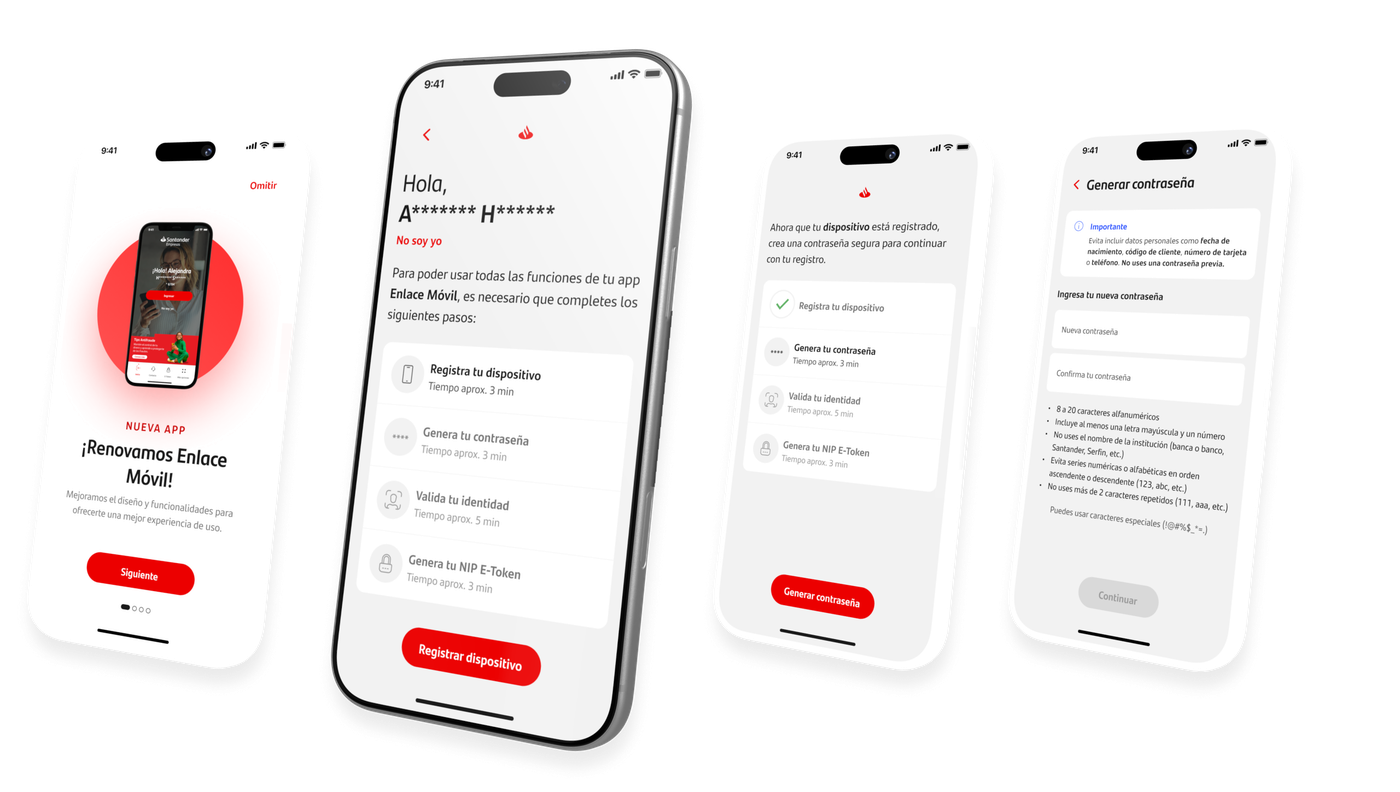
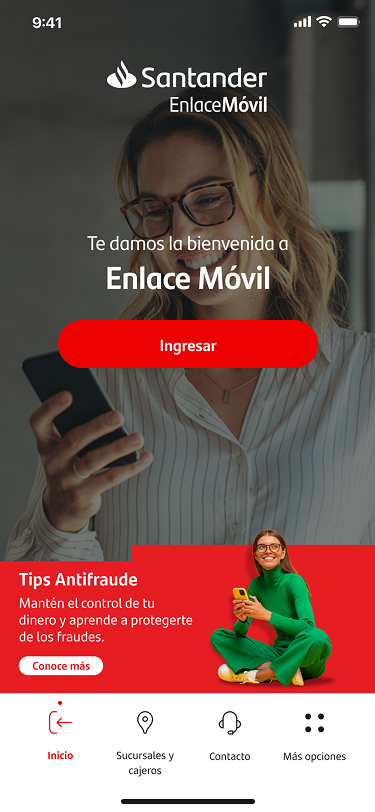
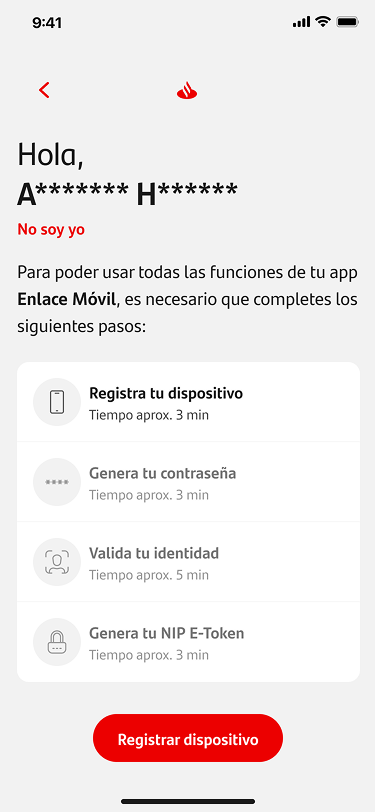
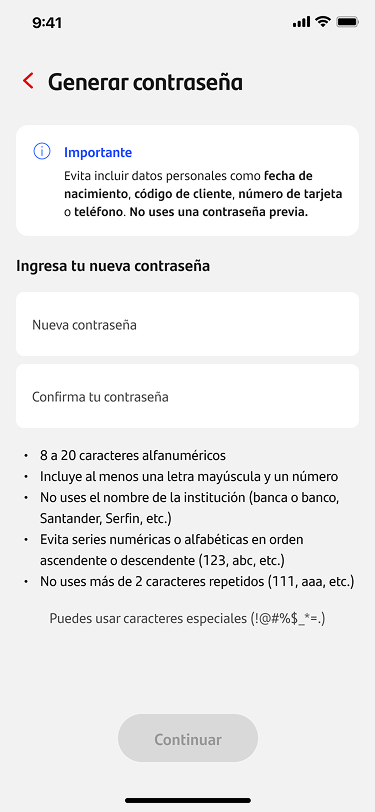
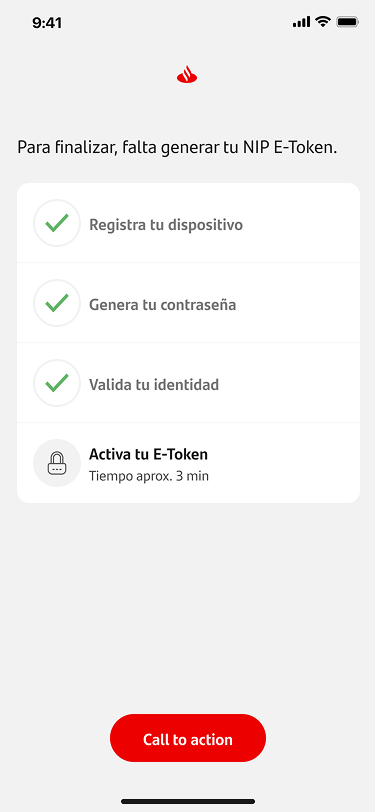
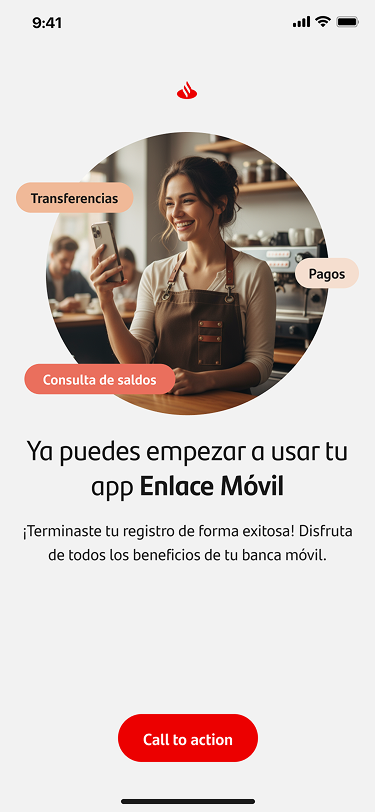
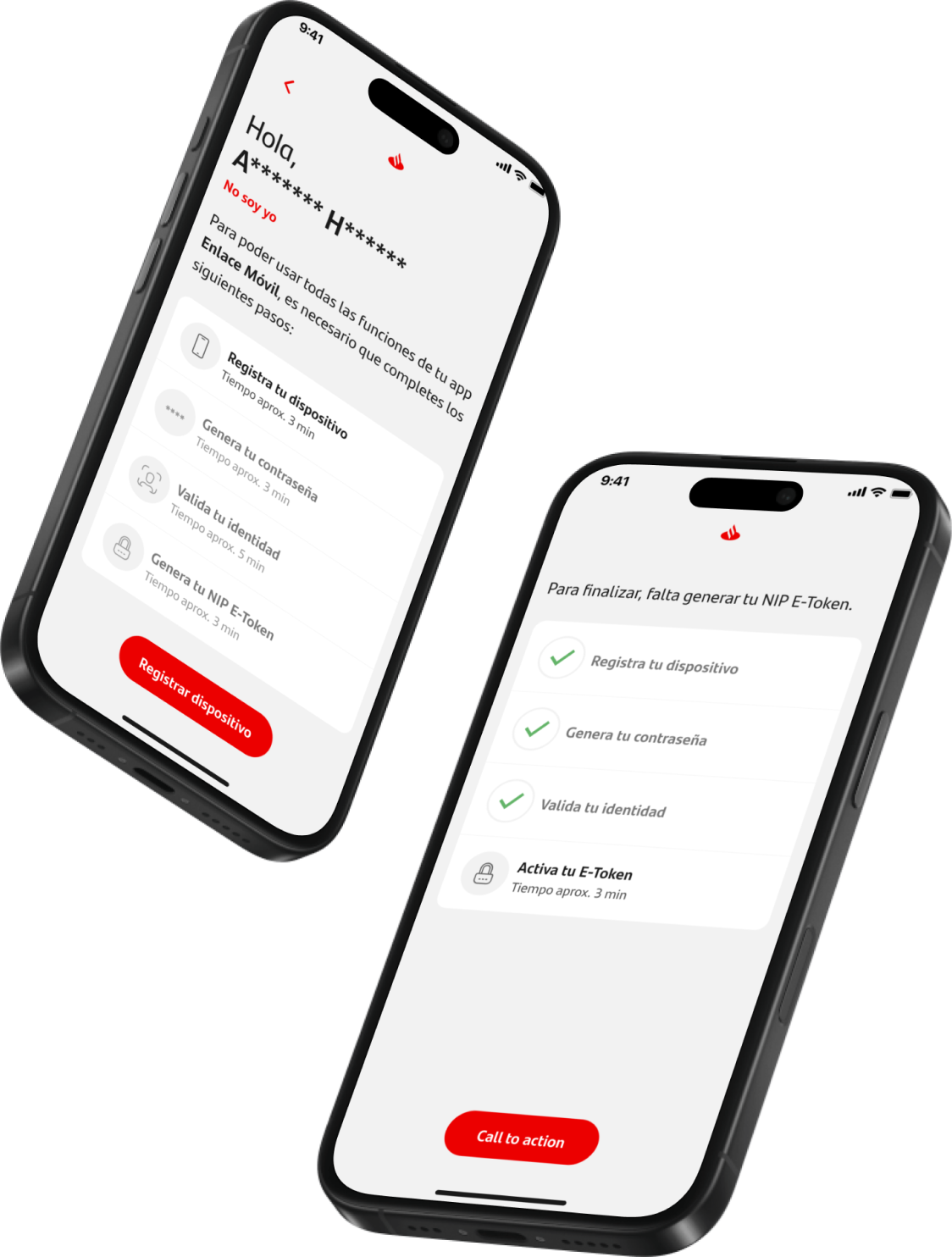
The onboarding flow was designed to help new users complete the initial setup required to access Santander Empresas — including registering their device, creating a password, validating their identity, and activating their E-Token.
The main challenge was that first-time access involved several security and configuration steps that could easily feel overwhelming.
To reduce friction, the experience was structured as a clear progression, allowing users to understand what they were doing, why each step was necessary, and how much progress they had made.
Progressive disclosure
Instead of presenting the entire setup as one long process, the flow was divided into smaller, understandable tasks.
Clear task status
A checklist helped communicate what had been completed, what was pending, and what action the user needed to take next.
Contextual guidance
Each screen explained the purpose of the step, especially in moments related to security, credentials, and identity validation.
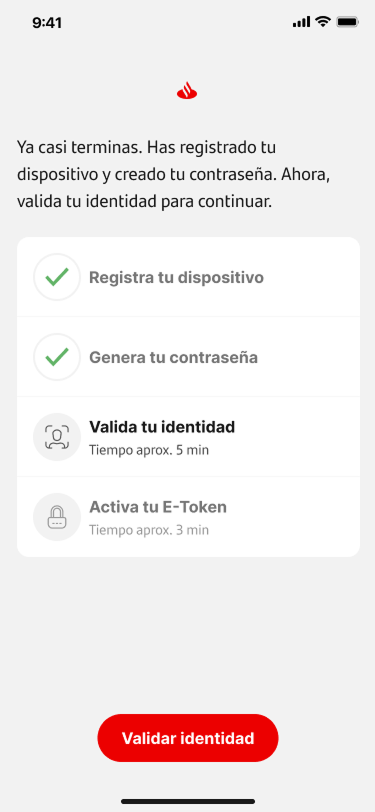
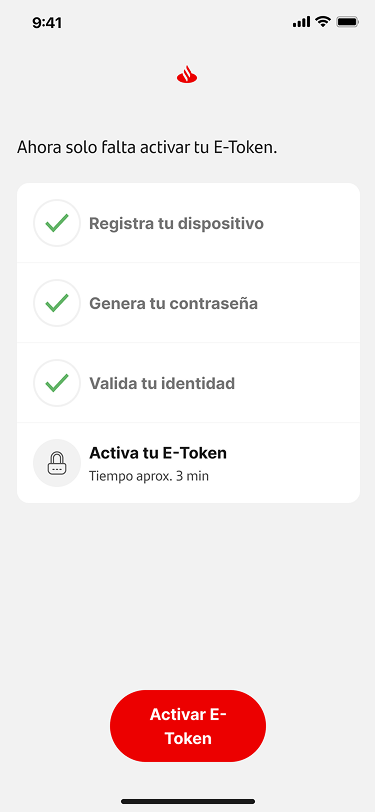
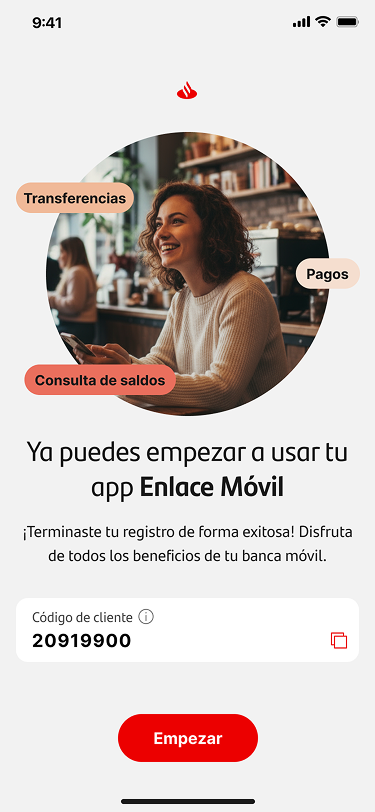
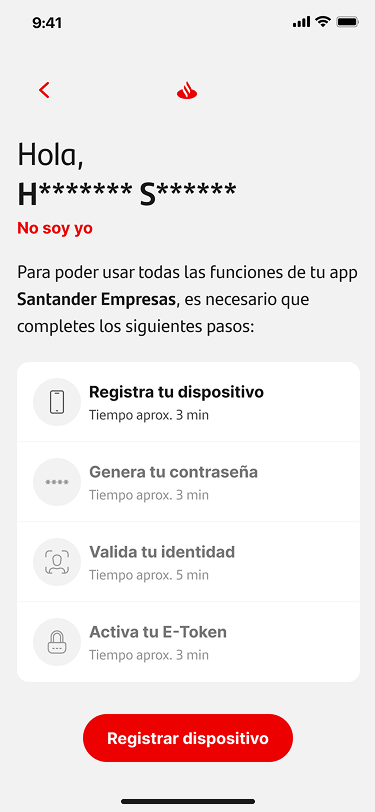
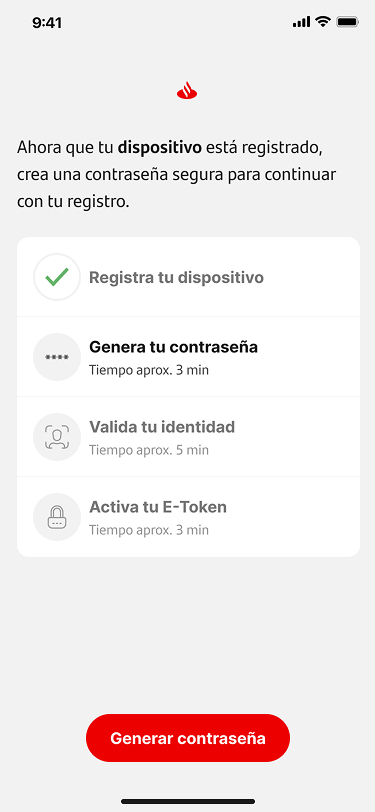
Key screens
Outcome
The onboarding experience helped transform a sensitive and technical registration process into a guided setup that felt more structured, predictable, and easier to complete.
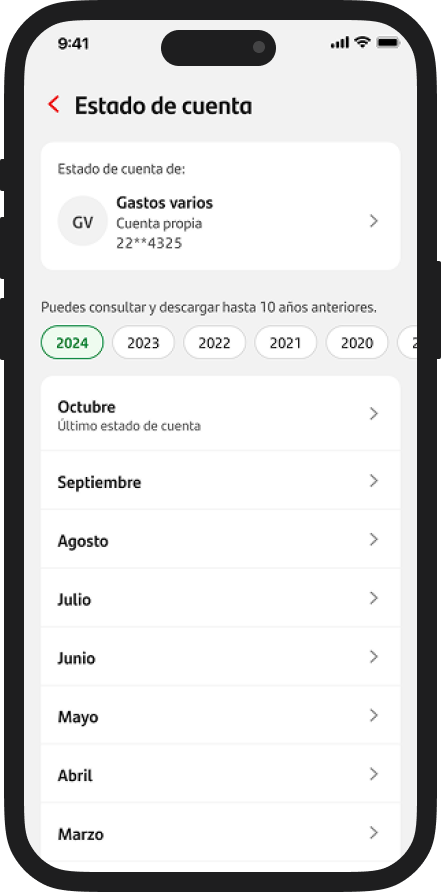
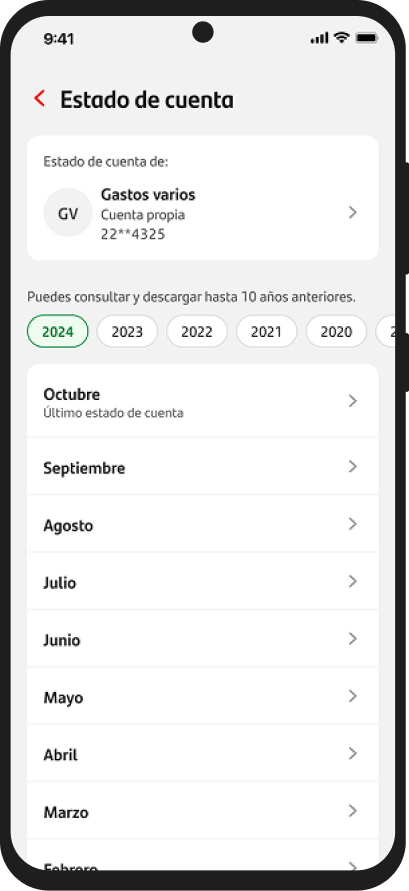
Optimizing the Account Statement flow for SME clients
Redesigning a critical SME feature for financial reconciliation and tax compliance.